Adding to the Question Bank
Build a reusable library of questions to draw on when creating exams — with real screenshots for every step.
The question bank is where every exam question lives before it's added to a paper. Here's how to add one.
 01
01Start a new question
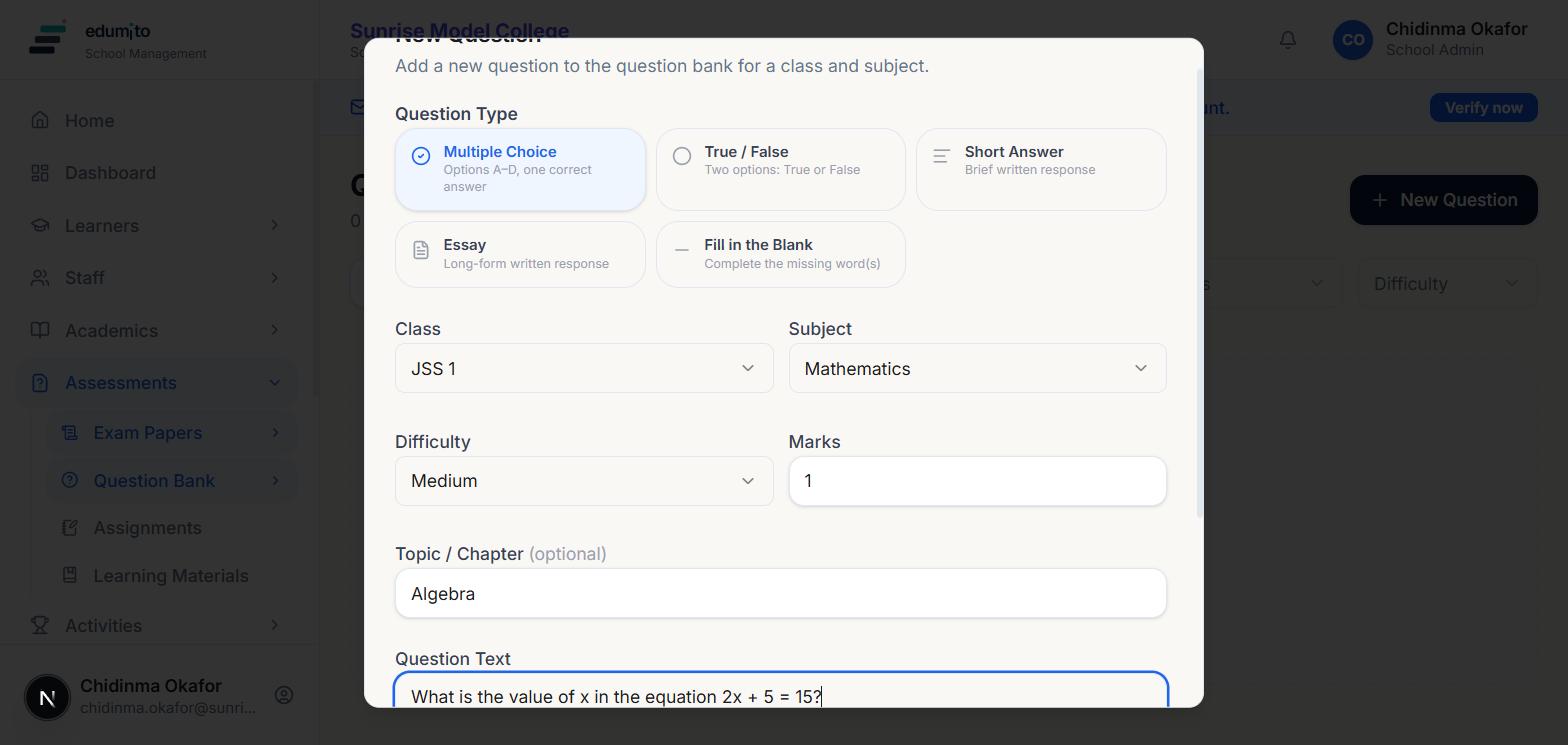
Go to Assessments → Question Bank and click "New Question". Choose a question type — Multiple Choice, True/False, Short Answer, Essay, or Fill in the Blank — then pick the class and subject it belongs to, set a difficulty and how many marks it's worth, and type the question itself. The topic field is optional but makes questions easier to find later.
 02
02Add the answer options
For a multiple choice question, add as many options as you need and click the circle next to the correct one to mark it — it highlights in green so you can double check before saving. True/False and the other question types have their own simpler answer setup.
 03
03It's in the bank
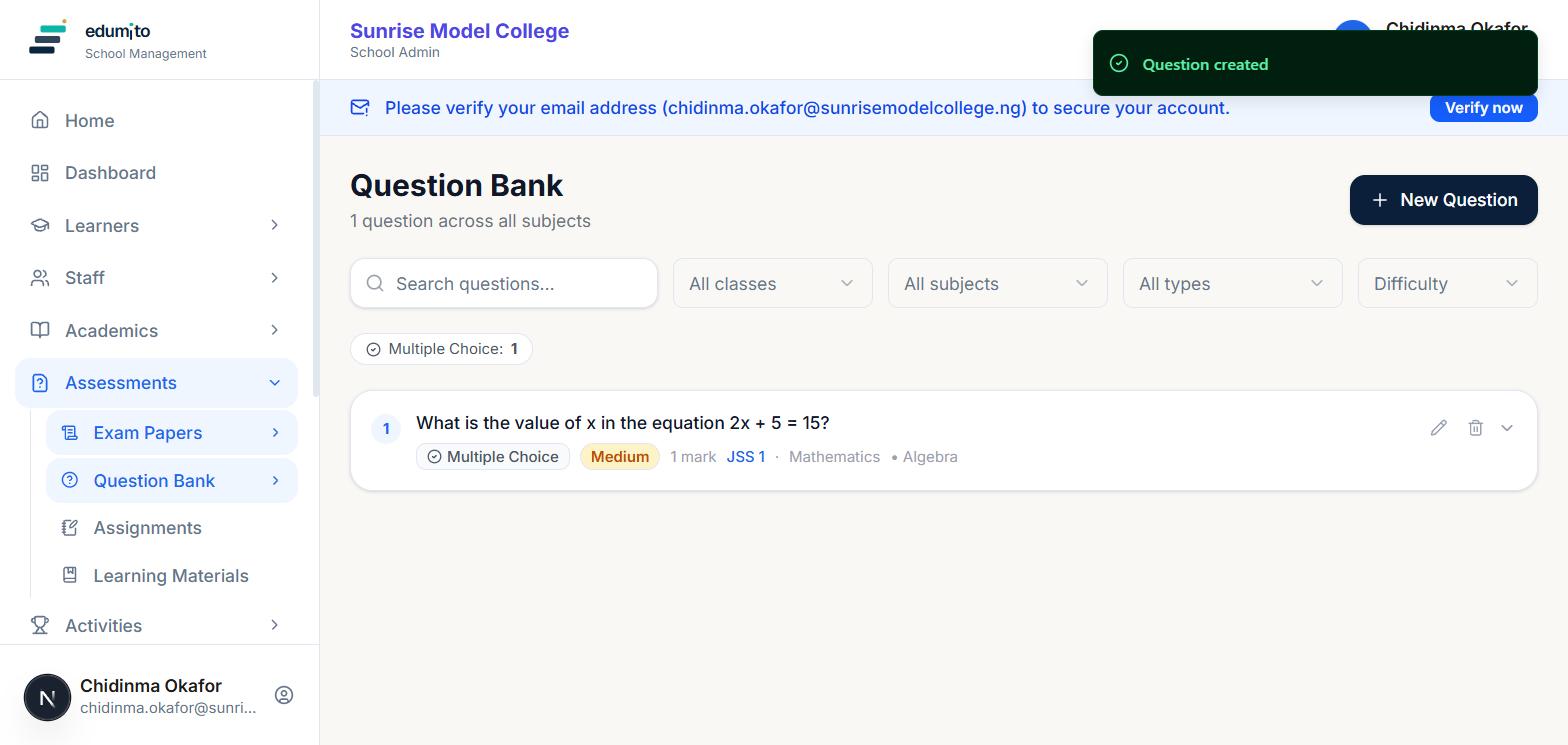
Your question now appears in the bank with its type, difficulty, marks, class and subject shown at a glance. Build up questions over time across your subjects — you'll draw on this same bank whenever you create an exam paper.