Entering CA & Exam Scores
Record continuous assessment and exam scores, and publish report cards — with real screenshots for every step.
Results are entered per class and subject, then totalled and graded automatically. Here's the full flow, from a blank scoresheet to a published report card.
 01
01Pick a term, class and subject
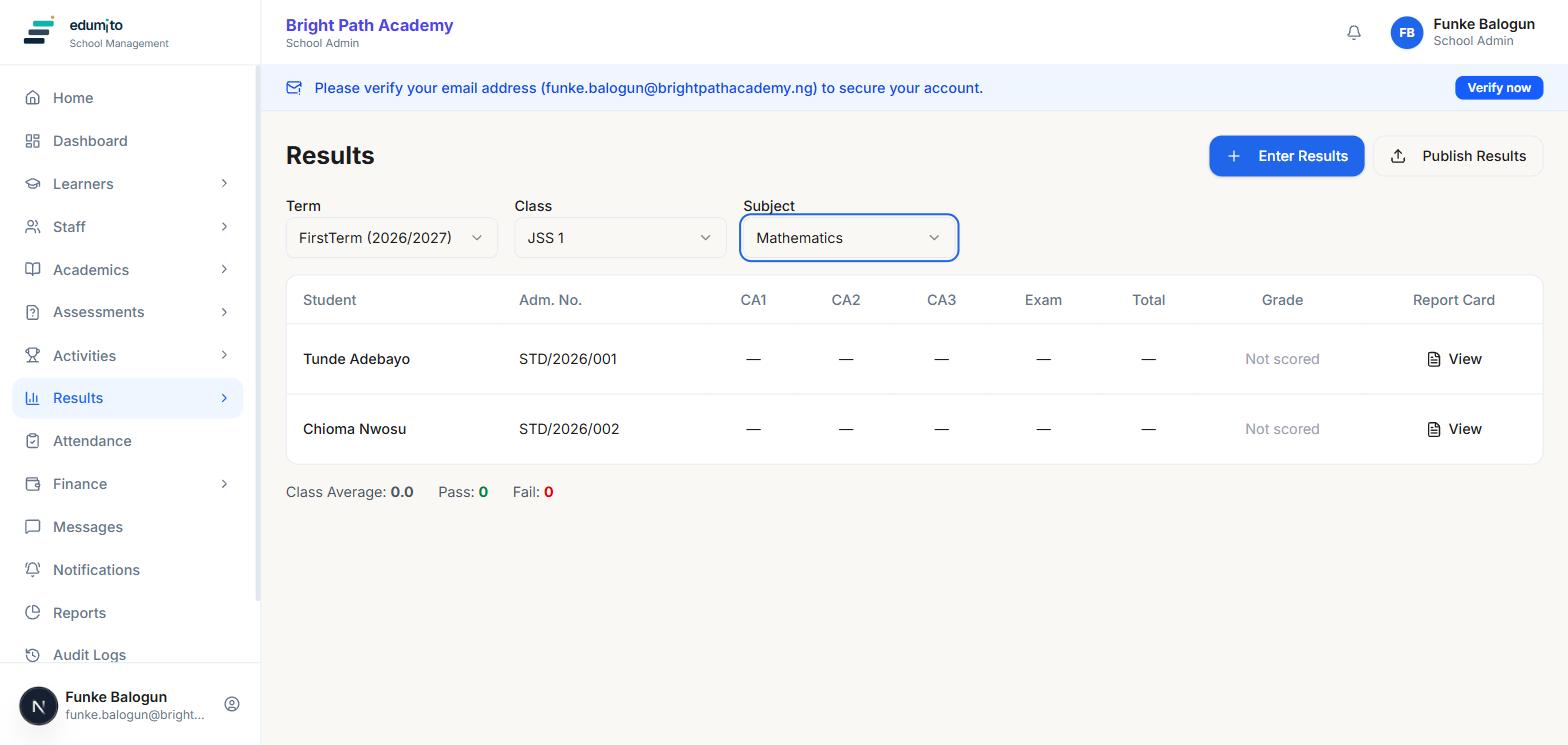
Go to Results and select the term, class and subject you want to score. Edumito lists every student in that class for that subject, with their CA1, CA2, CA3, Exam, Total and Grade columns showing "—" until something's entered.
 02
02Enter the scores
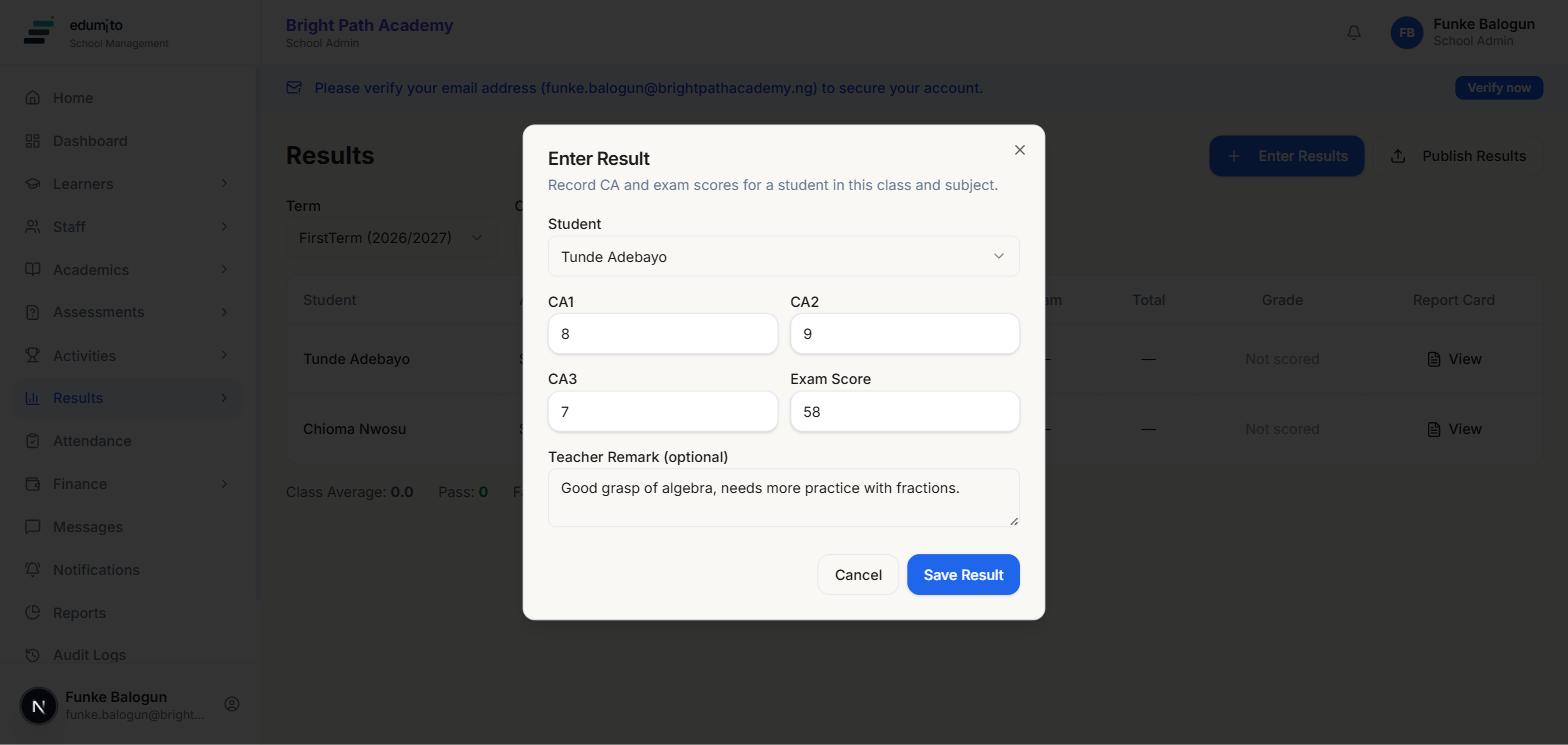
Click "Enter Results", pick the student, and fill in their three continuous assessment scores (CA1, CA2, CA3) and their exam score — each out of 100. An optional teacher remark goes on their report card alongside the scores.
 03
03It's totalled and graded automatically
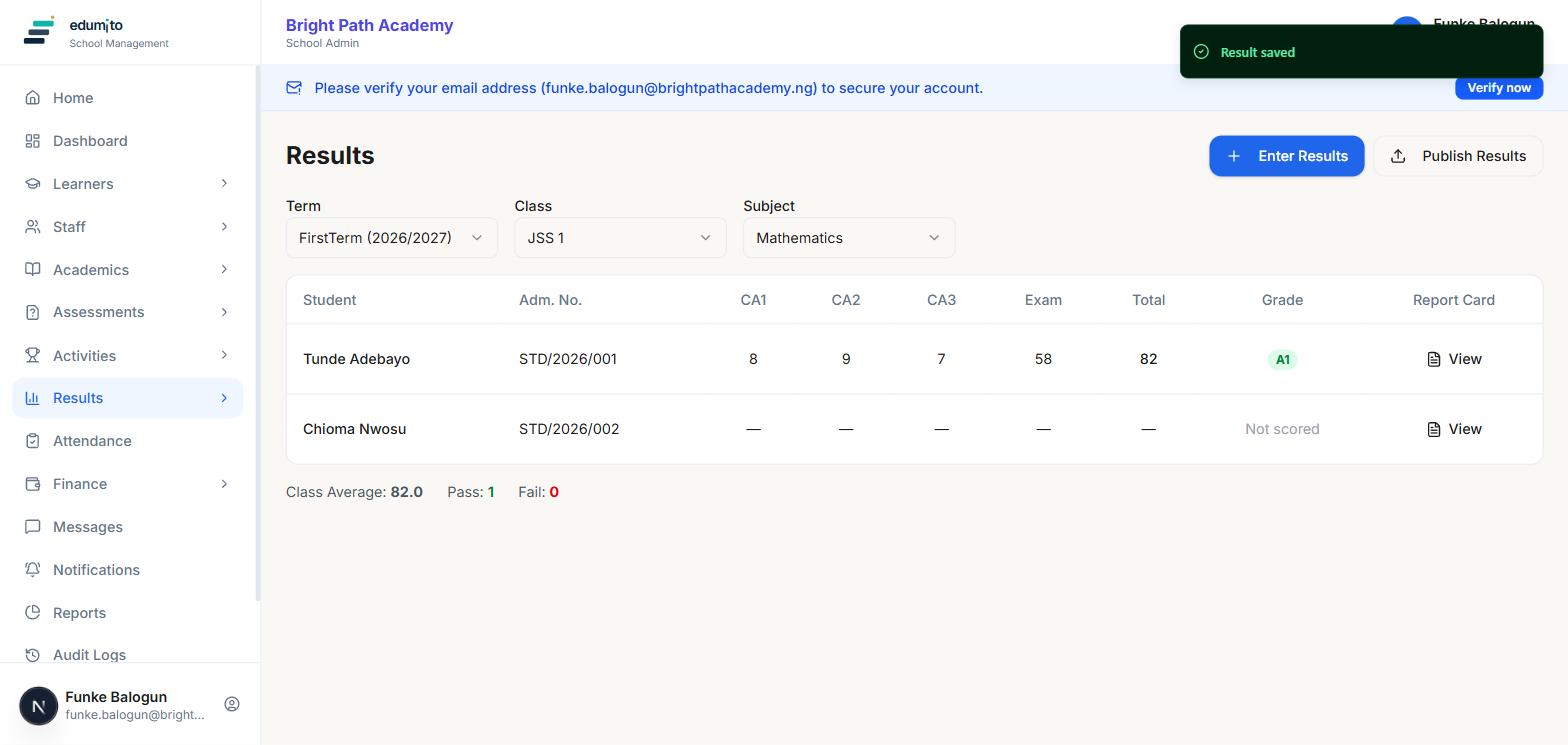
As soon as you save, the Total, Grade and class-wide average, pass and fail counts update immediately — Edumito adds up the CA scores and exam score and applies your school's grading scale for you. Repeat for the rest of the class.
 04
04Check the report card, then publish
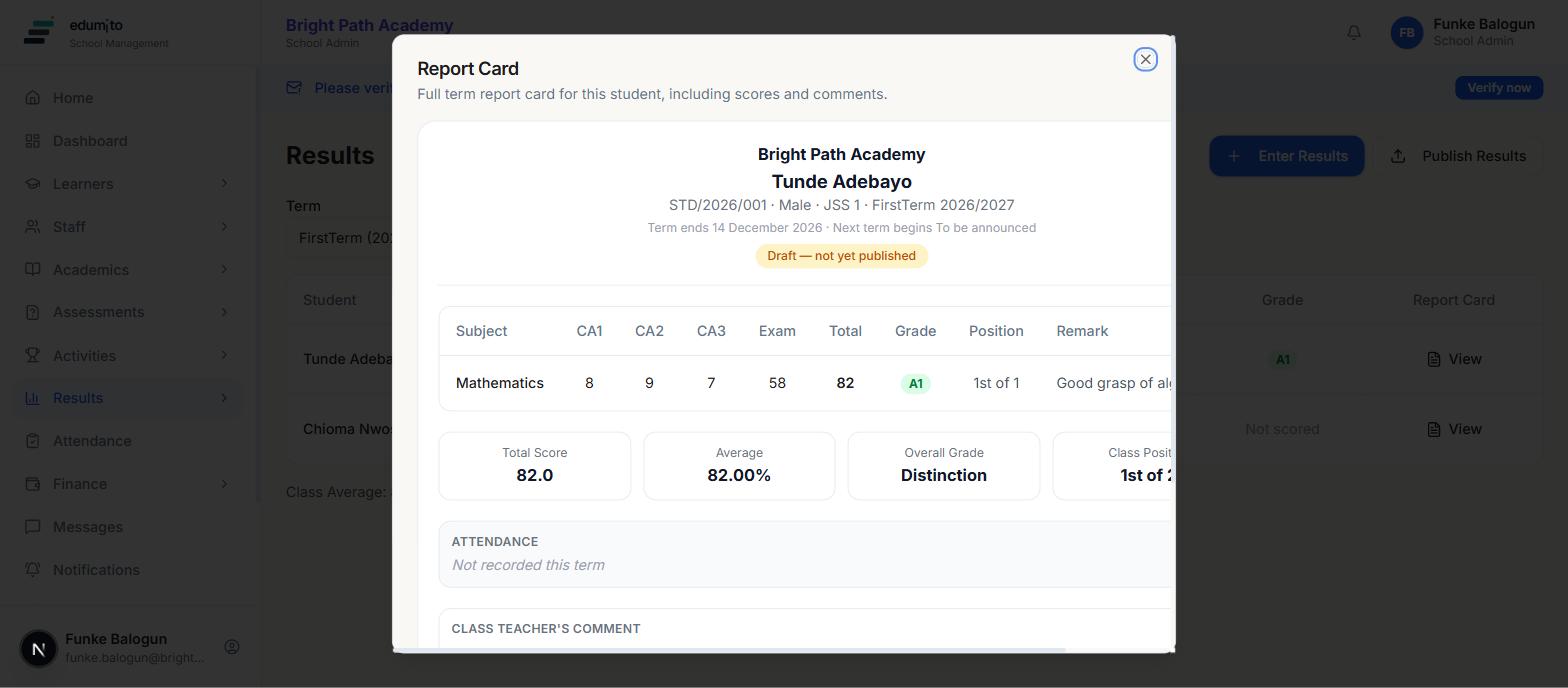
Click "View" next to any student to see their full report card as it will appear to parents — total, average, overall grade, and class position — marked "Draft" until you're ready. Once every subject for the term is scored, click "Publish Results" to make report cards visible to students and parents.